Step-by-step instructions
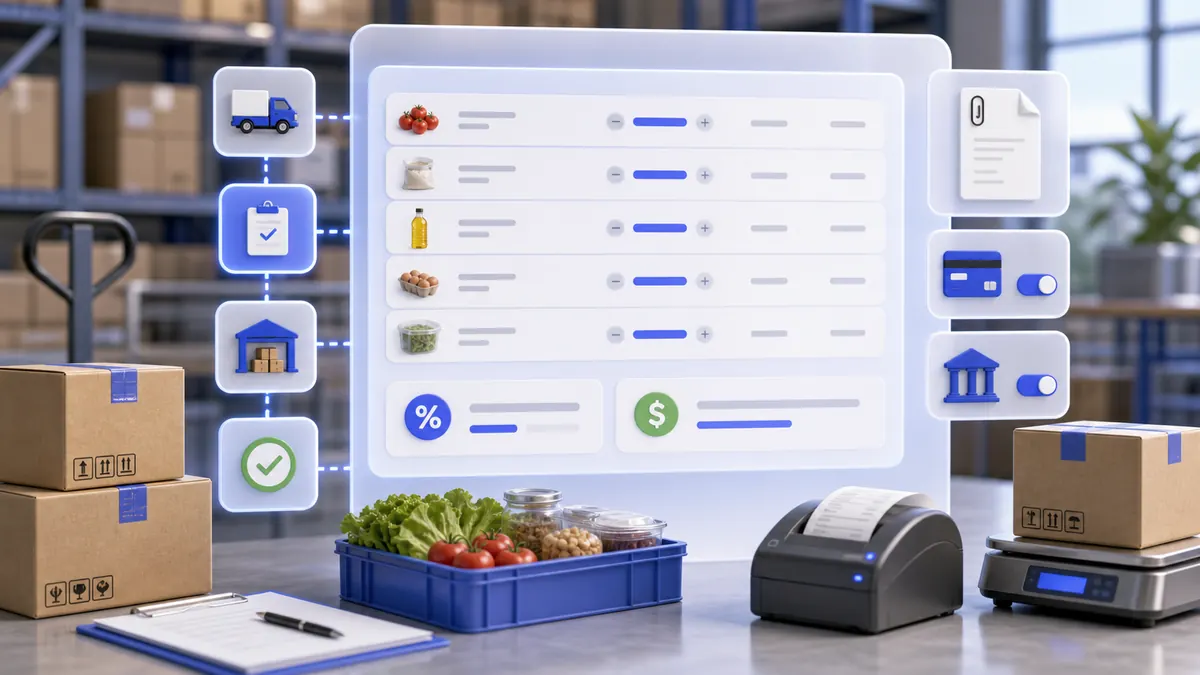
A manager can create a supply document that increases the right warehouse stock, links to the right supplier, keeps invoice proof, records tax, and optionally creates the matching finance transaction.
Use the interactive screenshot walkthrough first. Switch steps with the step dots, then read what to fill and why it matters.
Fields on this screen
Supplies list
How to fill: Open Supplies and check the table before adding another receiving document.
Why: Duplicate receiving rows double count inventory and confuse supplier statements.
Add
How to fill: Click Add in the top-right corner to create a new supply draft.
Why: The draft creates a document ID and opens the receiving form.
Storage
How to fill: Open Storage and select the warehouse where the goods actually arrived.
Why: This is the location whose stock should increase.
Supplier
How to fill: Open Supplier and choose the vendor from supplier profiles.
Why: Supplier history, invoice lookup, and purchasing reports depend on the correct vendor.
Currency
How to fill: Open Currency and confirm the invoice currency.
Why: The amount, payment transaction, and finance reports must use the same currency.
Invoice upload
How to fill: Click Upload invoice and attach a clear photo or file.
Why: The invoice is proof for quantities, prices, taxes, and supplier disputes.
Select product
How to fill: Open Select product and search by product or ingredient name.
Why: Only real product rows can update stock correctly.
Quantity
How to fill: Enter delivered quantity in the product unit shown by the form.
Why: Quantity controls the warehouse increase.
Price
How to fill: Enter unit price from the invoice.
Why: Price creates purchase cost and line subtotal.
Total
How to fill: Verify the automatically calculated total before adding the line.
Why: This catches quantity or price mistakes before saving.
Add product line
How to fill: Click Add after product, quantity, and price are correct.
Why: The line is not saved as part of the supply until it is added.
Tax
How to fill: Enter supply-level tax from the invoice.
Why: Tax keeps finance and reports aligned with the supplier document.
Payment switch
How to fill: Enable Payment only when the supplier is paid now or the receiving document should create a finance transaction.
Why: You can receive inventory without paying immediately.
Payment amount
How to fill: Enter the amount paid, usually subtotal plus tax.
Why: Finance reconciliation needs the paid amount to match the invoice or partial payment.
Settlement account
How to fill: Choose the cash, bank, or acquiring account used to pay the supplier.
Why: The expense must leave the correct account.
Payment comment
How to fill: Write a short comment such as Paid on receiving invoice or Partial supplier payment.
Why: Comments explain the transaction without changing inventory data.
Save
How to fill: Save after storage, supplier, currency, invoice, product lines, tax, and payment fields are reviewed.
Why: Saved supplies become the source for warehouse stock, purchases, finance, reports, and future AI agents.
Verify row
How to fill: Return to the Supplies list and verify amount, tax, employee, storage, supplier, and items.
Why: List verification proves the row was written and loaded back from the real database.
Common mistakes
- Saving a supply without adding product lines.
- Choosing the wrong storage, which increases stock in the wrong location.
- Choosing the wrong supplier or creating a supplier duplicate before receiving.
- Typing quantity in the wrong unit, for example pieces when the product unit is kilograms.
- Entering invoice total as unit price instead of line price per unit.
- Forgetting tax when the supplier invoice includes tax.
- Turning on Payment for unpaid deliveries and accidentally creating an expense transaction.
- Selecting the wrong settlement account for supplier payment.
- Uploading an invoice but not checking that product lines match it.
- Editing supplies directly in Supabase without refreshing related app data.
AI Agent Field Reference for implementation
This block is intentionally below the human instructions. It explains storage names and downstream dependencies for automation, support, and future AI agents.
| Field | Stored as | Purpose | Why it matters |
|---|---|---|---|
| Supply ID | supplies.id / SupplyStruct.ID | Unique receiving document identifier. | Inventory movements, invoice references, payment transactions, reports, support, and AI agents need a stable supply ID. |
| Company | supplies.company | Company workspace that owns the supply. | Prevents receiving rows from one workspace from appearing in another company. |
| Supply date | supplies.date / SupplyStruct.Date | Date and time when goods were received or invoice should be recorded. | Stock history, supplier statements, tax period, and purchasing reports depend on the receiving date. |
| Supplier | supplies.supplier / SupplyStruct.Supplier | Firestore supplier profile ID. | Links the receiving document to vendor contacts, invoice history, quality claims, and supplier reports. |
| Storage | supplies.storage / SupplyStruct.Storage | Warehouse or storage location receiving the goods. | This decides where inventory increases and prevents stock from appearing in the wrong branch or warehouse. |
| Employee | supplies.employee / SupplyStruct.Emplyy | Employee or user who created the receiving document. | Useful for accountability, audit, and explaining who accepted the delivery. |
| Currency | supplies.currency / SupplyStruct.Currency | Currency used by the invoice and line totals. | Finance reports and supplier reconciliation need explicit currency, especially for multi-currency companies. |
| Invoice images | supplies.images / SupplyStruct.Image[] | Uploaded invoice photos or files stored in Supabase Storage. | Invoice proof lets managers verify supplier, tax, quantities, prices, and disputes. |
| Items | supplies.items[] / SupplyStruct.Items[] | List of product movement lines received in this supply. | Inventory can only increase correctly when each delivered product is recorded as a line item. |
| Item ID | supplies.items[].ID | Unique line identifier. | Line IDs help audits, edits, imports, and AI explanations refer to a concrete row. |
| Item date | supplies.items[].date | Date stored on the product movement line. | Keeps product movement history aligned with the supply date. |
| Movement type | supplies.items[].Type = + | Stock movement direction. | A supply should add stock; agents must not confuse it with write-off, transfer, or sale consumption. |
| Product | supplies.items[].Product | Product or ingredient ID being received. | This is the actual stock item that increases in storage. |
| Quantity | supplies.items[].Gross | Delivered quantity in the product unit. | Stock levels and reorder decisions depend on accurate quantity. |
| Unit | products.unit_of_measurement | Measurement unit shown for the product, such as kg, pcs, or l. | Quantity without unit is ambiguous for staff, reports, and AI agents. |
| Unit price | supplies.items[].Price | Supplier price for one unit. | Used for receiving cost, purchase history, margin, and supplier comparison. |
| Line amount | supplies.items[].amount | Quantity multiplied by unit price. | Forms the supply subtotal and makes invoice reconciliation possible. |
| Tax | supplies.tax / SupplyStruct.Tax | Tax charged on the supply invoice. | Finance, tax reports, supplier statements, and total explanations depend on this number. |
| Subtotal | supplies.amount | Sum of added item line amounts before supply-level tax. | Used in list totals and purchasing reports. |
| Total with tax | supplies.amount + supplies.tax | Operational total managers compare with invoice and payment amount. | This is the number people expect to reconcile against the supplier invoice. |
| Payment switch | Supply form switchCustomModel.yorN | Whether a finance transaction is created or kept for this supply. | Receiving inventory and paying the supplier are related but separate events; the switch controls whether they are saved together. |
| Transaction ID | supplies.transaction_id / SupplyStruct.Transaction | Linked finance transaction when payment is enabled. | Allows support and AI agents to connect receiving to the expense transaction. |
| Transaction amount | transactions.amount | Money paid to supplier. | Should usually equal invoice total when the supply is paid immediately. |
| Settlement account | transactions.from_account | Finance account used to pay the supplier. | Cash, bank, and acquiring accounts must stay accurate for reconciliation. |
| Transaction comment | transactions.comment | Short payment note. | Explains why the expense exists without burying data in the supply line. |
| Transaction category | transactions.category = Supply | Finance category for supplier receiving payments. | Reports can separate supply expenses from payroll, transfers, refunds, and other costs. |
| Status | supplies.status / SupplyStruct.Status[] | Status history or audit metadata for the supply. | Can support approvals, created state, review state, and future automation. |
| Created at | supplies.created_at | Timestamp when the row was written. | Useful for setup troubleshooting and audit history. |
| App cache | FFAppState().Supply | Client-side list of supplies after app loading. | After backend edits, the app must reload before the list shows current rows. |
| Reload markers | company.loadproduct / loadstorage / loadsupplier / loadaccount | Company timestamps used to refresh related lists. | Native and backend changes need these markers so the form sees products, warehouses, suppliers, and accounts. |
Related guides
Use these guides to connect this section to adjacent SABSUS workflows.