Step-by-step instructions
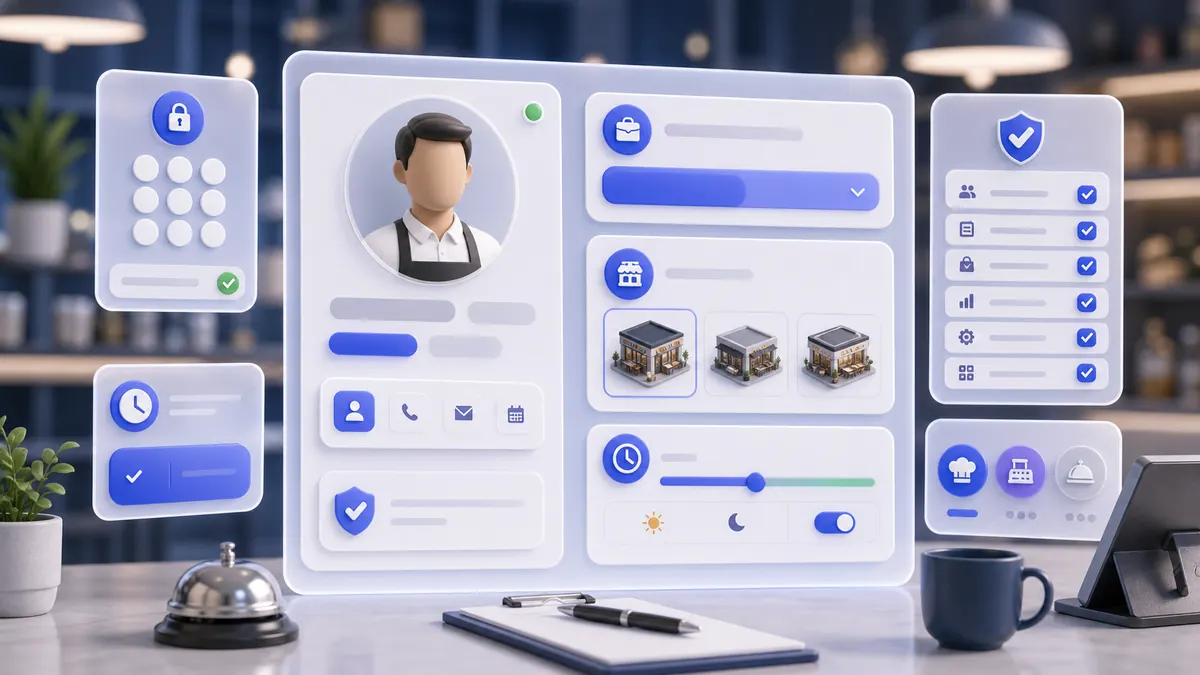
A manager can add an employee in SABSUS, assign the correct location and role, record required identifiers, and verify that the user appears in the Employees list.
Use the interactive screenshot walkthrough first. Switch steps with the step dots, then read what to fill and why it matters.
Fields on this screen
Employees list
How to fill: Start from the list and search for the employee before adding a new one.
Why: Duplicate employee records make logins, permissions, reports, and shifts hard to audit.
Add
How to fill: Click Add only when a new staff user is needed.
Why: The form creates a draft that must be completed and saved.
Employee photo
How to fill: Upload a real portrait or work avatar.
Why: Managers and terminal users identify staff faster with a photo.
Name and last name
How to fill: Enter the employee's readable name in the current interface language.
Why: Lists, schedules, reports, and order attribution need a clear name.
How to fill: Use a real unique work email.
Why: SABSUS uses this email to create or update the user login.
Phone
How to fill: Enter the phone with country code when possible.
Why: Notifications, delivery tasks, and schedule changes depend on reliable contact data.
Date fields
How to fill: Keep the current date only if it is correct; otherwise open the date picker and choose the real date.
Why: Dates support staff history and later automation.
Personal discount and discount card
How to fill: Fill only when the company uses staff discounts or card scanning.
Why: Discount data changes totals and must be explainable.
PIN
How to fill: Use a short unique code for terminal switching.
Why: PINs provide speed, but duplicate PINs break accountability.
Establishment
How to fill: Open the selector and choose the location where this employee works.
Why: The wrong establishment can hide the correct orders, stock, or reports.
Position
How to fill: Open the selector and choose a prepared position.
Why: Position links the employee to the intended role and permission model.
Interface
How to fill: Open the selector and choose the first screen after login.
Why: A cashier, manager, courier, and kitchen worker should not all start in the same place.
Tax and registration identifiers
How to fill: Fill only when required by HR, payroll, or compliance.
Why: These fields make documents and audits traceable.
Access block
How to fill: Review Statistics, Finance, Storage, Menu, Marketing, Staff, and Settings access.
Why: Give only the access that matches the employee's real job.
Comment
How to fill: Add a short internal note when the reason for access is not obvious.
Why: Support and managers can understand why the profile was created.
Work gallery
How to fill: Upload example work photos only when the employee needs a profile gallery.
Why: Gallery media supports specialists and proof-of-work scenarios.
Save
How to fill: Save after every visible field is reviewed.
Why: Only saved staff can be verified in the Employees list.
Common mistakes
- Saving without email; the form requires email to register the user.
- Assigning an employee before creating a clear position with the right permissions.
- Leaving the employee in the wrong establishment, which sends them into the wrong location context.
- Reusing the same PIN for several employees on the terminal.
- Giving broad access in accets when the employee only needs one operational area.
AI Agent Field Reference for implementation
This block is intentionally below the human instructions. It explains storage names and downstream dependencies for automation, support, and future AI agents.
| Field | Stored as | Purpose | Why it matters |
|---|---|---|---|
| User document ID | users/{uid} / users.uid | Stable Firestore user document and auth UID. | Orders, shifts, permissions, notifications, and support actions need a stable user link. |
| Company | users.CompanyID | Company workspace connected to the employee. | Prevents staff from seeing another company's data. |
| Photo | users.Photo.image / users.Photo.blur | Employee avatar uploaded through the form. | Helps managers and terminal users identify the correct employee visually. |
| First name | users.Firstname | Employee given name. | Shown in employee lists, terminal switching, reports, and schedules. |
| Last name | users.Lastname | Employee family name. | Needed for staff search, documents, and HR context. |
users.email | Required login or work email. | The save action registers or updates the user account from this email. | |
| Phone | users.Phone / users.phone_number | Employee phone number normalized for contact. | Used for schedule changes, delivery/courier work, notifications, and support. |
| Date of birth | users.BF | Birthday or birth date. | Useful for HR records and future reminders or compliance logic. |
| Personal discount | users.Discount | Employee-specific discount value. | Explains why this user may receive a special discount in customer or staff flows. |
| Discount card | users.CardNumber | Card or barcode connected to the employee. | Can be used for scanning, loyalty-like identification, or internal discount tracking. |
| PIN code | users.Pin | Quick terminal access code. | Fast employee switching and POS accountability depend on a unique PIN. |
| Start of employment | users.created_time / users.createdTime | Date the employee starts working in the company. | Feeds staff history, scheduling, payroll context, and audit explanations. |
| Establishment | users.Establishment | Primary location where the employee works. | Controls location-specific orders, warehouse, reports, and operational context. |
| Position | users.Position / positions.id | Assigned staff role. | Connects the employee to role permissions and readable job title. |
| Interface | users.LastInterface | Default screen opened after login. | Saves time and keeps staff focused on the workflow they actually use. |
| Tax number | users.TaxID | Employee tax identifier when required. | Needed for payroll, documents, compliance, or local HR records. |
| Registration number | users.Registration | Employee registration or HR identifier. | Supports documents, staff audits, and external payroll references. |
| Access block | users.accets | Individual access object for settings and operational sections. | Agents and support must check this before telling an employee to use restricted areas. |
| Comment | users.Comment | Internal note about the employee. | Keeps setup context visible for managers without changing permissions. |
| Work gallery | users.gallery | Employee work photos or proof images. | Useful for specialists, portfolio-style profiles, and visual work evidence. |
| Push notifications | users.NotificationPUSH | Whether push notifications are enabled. | Controls operational alerts and mobile updates. |
| SMS notifications | users.NotificationSMS | Whether SMS notifications are enabled. | Important for phone-based alerts and staff communication. |
| Email notifications | users.NotificationEmail | Whether email notifications are enabled. | Controls email-based staff communication. |
| Blocked | users.Bloked | Whether the employee account is disabled. | Blocked employees should not access active workflows. |
| Last active | users.LastDate | Last known employee activity. | Helps support troubleshoot stale accounts and unused access. |
| Save | upsertUserAuto(document) | Creates or updates the Firestore user and Auth account. | Unsaved employee cards do not become reliable staff accounts. |
Related guides
Use these guides to connect this section to adjacent SABSUS workflows.