Step-by-step instructions
A manager can publish a banner that appears only in the right locations, during the right date and time window, with a clear media asset and measurable customer action.
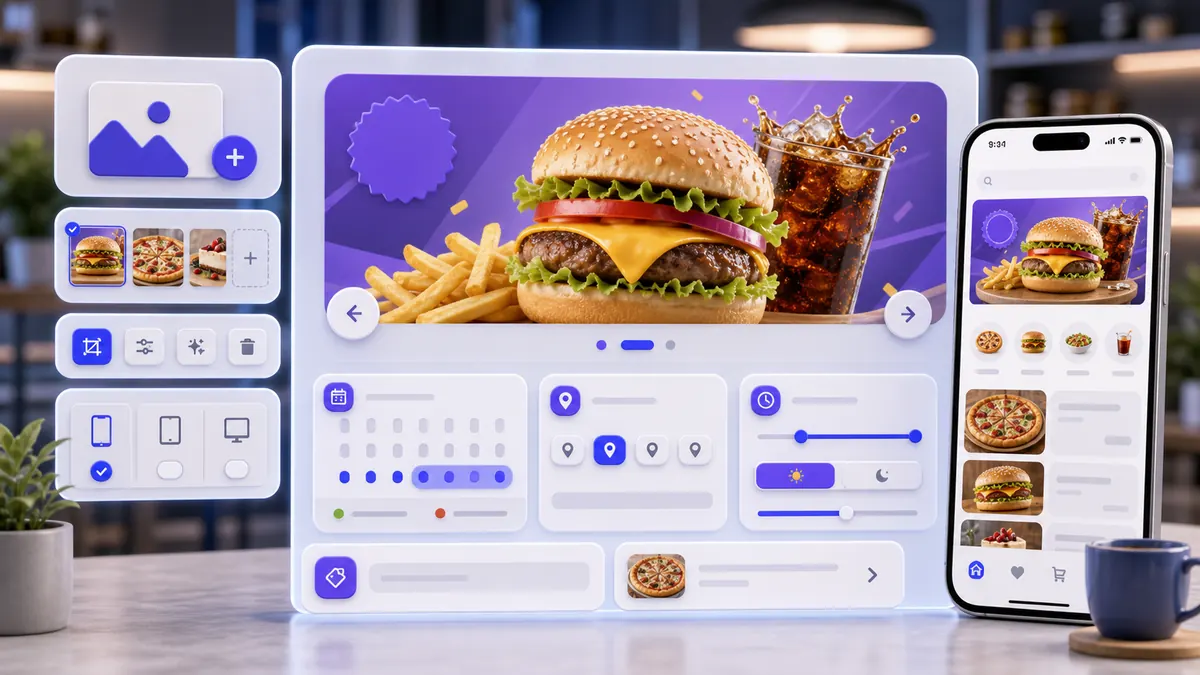
Use the interactive screenshot walkthrough first. Switch steps with the step dots, then read what to fill and why it matters.
Fields on this screen
Advertising banners list
How to fill: Start from the list and review existing campaigns.
Why: The list prevents duplicate or conflicting banners.
Add
How to fill: Click Add to create a new banner row in the company context.
Why: The row receives an ID, number, and default location setup.
Media upload
How to fill: Upload a wide image or video. Recommended regular banner size is 1400 x 400, aspect ratio 7:2.
Why: The media is what customers actually see, so size and clarity matter more than internal text.
Available
How to fill: Keep enabled only when the banner is ready to show.
Why: Draft banners should not appear in customer screens.
Start date
How to fill: Open the picker and confirm when the campaign starts.
Why: Future campaigns should not be visible before launch.
End date
How to fill: Open the picker and confirm when the campaign ends.
Why: Expired offers should not remain live.
Show from / Show until
How to fill: Open the time fields when the banner should appear only during specific hours.
Why: Time windows keep day-part promotions accurate.
Scrolling time
How to fill: Type the number of seconds, for example 8.
Why: This controls banner rotation speed and customer readability.
In locations
How to fill: Open the dropdown and select only the establishments where the offer is valid.
Why: Location scoping prevents customers from seeing offers a branch cannot fulfill.
Linked product
How to fill: Open the product selector only when tapping the banner should open a product.
Why: This connects promotion discovery to ordering.
Save
How to fill: Save after media, dates, time, locations, product link, and availability are checked.
Why: Unsaved banners do not become reliable customer-facing campaign data.
Verify
How to fill: Return to the list and search the banner ID if needed.
Why: Verification confirms the row exists with media, active switch, dates, scrolling time, and promotion marker.
Common mistakes
- Uploading a banner with the wrong aspect ratio, which makes the media crop badly.
- Leaving Available enabled for a draft or expired campaign.
- Creating a campaign without an end date or review date.
- Selecting all locations when the promotion is valid only in one branch.
- Using a scrolling time that is too short for customers to read.
- Linking a product that is not available in the selected establishments.
- Editing data natively without updating the company loadbaner reload marker.
AI Agent Field Reference for implementation
This block is intentionally below the human instructions. It explains storage names and downstream dependencies for automation, support, and future AI agents.
| Field | Stored as | Purpose | Why it matters |
|---|---|---|---|
| Banner ID | baners.id | Unique advertising banner identifier. | Support, imports, ordering, and edit actions need a stable row ID. |
| Company | baners.company_id | Company workspace that owns the banner. | Prevents promotional banners from leaking between companies. |
| Number | baners.number | Banner order number. | Used for sorting, table order, import/export, and manager review. |
| Available | baners.available | Whether the banner can be shown. | Disabled banners can remain as drafts without reaching customer screens. |
| Media | baners.photo | Image or video object for the banner. | This is the customer-facing creative asset shown in app, web, terminal, or self-service flows. |
| Media languages | baners.photo.Language | Languages where the media is valid. | Multilingual customer screens need to know which media can be shown. |
| Campaign start and end | baners.time_available | Date range when the banner is active. | Old campaigns should stop automatically, and future campaigns should not appear early. |
| Daily show window | baners.betweentime | Daily time range for banner display. | Breakfast, happy hour, delivery, and evening offers often need a specific time window. |
| Scrolling time | baners.time | Seconds before the banner rotates to the next one. | Too short is unreadable; too long blocks other promotions. |
| Locations | baners.establishment | Establishment IDs where the banner is shown. | Local promotions should appear only where the offer is actually available. |
| Linked product | baners.product | Optional product ID opened when the banner is tapped. | A linked product turns a static promotion into a sales entry point. |
| Discount or promo marker | baners.discount | Short promotion value displayed in the list or downstream logic. | Managers can quickly identify the offer, and agents can explain why the banner exists. |
| Name translations | baners.name | Multilingual banner name. | Names are useful for search, support, exports, and AI explanations even when the table focuses on media. |
| Created at | baners.created_at | Timestamp when the banner row was created. | Useful for audit history and setup troubleshooting. |
| Updated at | baners.updated_at | Timestamp when the banner was last changed. | Support and agents can tell whether the campaign data is fresh. |
| Reload marker | company.loadbaner | Company timestamp that tells SABSUS to reload banner state. | Without a reload marker, the app can keep an old banner cache after native or bulk changes. |
Related guides
Use these guides to connect this section to adjacent SABSUS workflows.