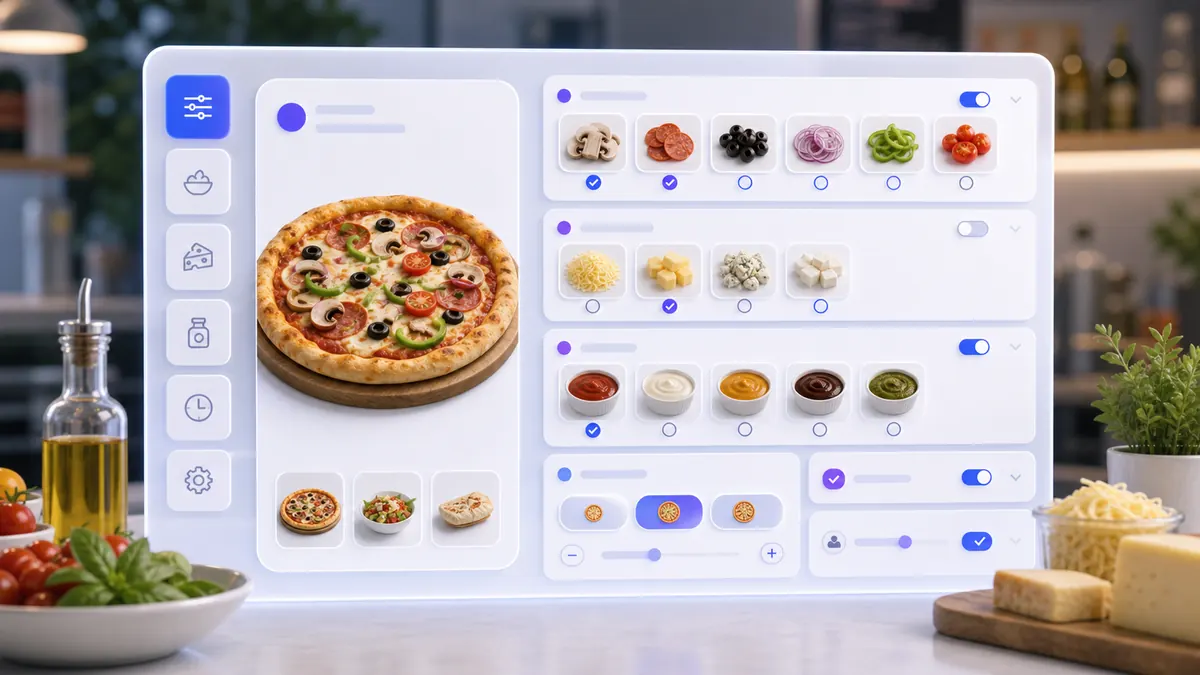
Step-by-step instructions
Products can use clear modifier groups with translated names, selection limits, display mode, product-linking behavior, and safe order rules.
Use the interactive screenshot walkthrough first. Switch steps with the step dots, then read what to fill and why it matters.
Fields on this screen
Modifier Sets list
How to fill: Start from the list and check current rows before creating a new set.
Why: Duplicate sets make product setup, order modifiers, and reports confusing.
Add
How to fill: Click Add to open the real Set of Modifiers form.
Why: The set receives rules for name, display, product linking, and selection limits.
Set name
How to fill: Type a short, clear name in the active interface language.
Why: Staff and customers need to understand what the group controls.
Translations
How to fill: Open the three-dot translation menu and fill every enabled language.
Why: Multilingual products, customer app text, receipts, and AI explanations use these labels.
Product specification
How to fill: Enable only when the choice describes a specification rather than an add-on.
Why: Specifications should not be confused with paid or selectable modifiers.
Link a modifier to a product
How to fill: Keep enabled when modifiers should be real product records.
Why: Product-linked modifiers can have pricing, stock, and order behavior.
Set without photos
How to fill: Enable for simple text-only choices; leave off when visual options are useful.
Why: Photo mode helps customers and cashiers recognize modifiers faster.
Only one
How to fill: Choose it for size, crust, temperature, or another mutually exclusive option.
Why: The order should not allow several values from a single-choice group.
Several
How to fill: Choose it for toppings, sauces, add-ons, or extras where several choices can be selected.
Why: Several mode lets one product receive multiple modifiers.
Minimum per modifier
How to fill: Set the minimum quantity allowed for one modifier item.
Why: Use 0 for optional toppings and 1 when an individual modifier must be selected.
Maximum per modifier
How to fill: Set the maximum quantity allowed for one modifier item.
Why: This prevents repeated selection of one modifier beyond business limits.
Minimum in this set
How to fill: Set the required number of choices across the whole set.
Why: Use 1 when the customer must choose at least one option.
Maximum in this set
How to fill: Set the total maximum across all selected modifiers.
Why: This protects product rules, pricing, kitchen flow, and ingredient consumption.
Save
How to fill: Save only after names, switches, mode, and limits are checked.
Why: Unsaved sets cannot be safely attached to products.
Verify row
How to fill: Return to the list and verify name, Min, Max, and Link to product.
Why: The row confirms the set was written and reloaded from Supabase.
Edit
How to fill: Open the row menu and click Edit when rules or modifiers need changes.
Why: The edit form is where the saved set can be reviewed and updated.
Set type
How to fill: Open the dropdown and choose With photos or Text only.
Why: Display type should match how staff and customers identify modifiers.
Add modifier
How to fill: Use + Add modifier after the set exists.
Why: The set defines rules, but orders need concrete modifier items inside it.
Attach to products
How to fill: Connect the saved set from the product card.
Why: A modifier set does not appear in checkout until a product uses it.
Common mistakes
- Creating a modifier set but never adding modifier products inside it.
- Adding a set only in one language while the company sells in several languages.
- Using Only one for toppings or add-ons that should allow multiple choices.
- Setting Minimum in this set higher than Maximum in this set.
- Setting per-modifier maximum lower than the required minimum.
- Turning off Link to product when modifier pricing, stock, or product reporting is required.
- Using Product specification for normal paid modifiers or add-ons.
- Forgetting to attach the saved set to a product.
- Changing rows directly in Supabase without updating company.loadoptions.
AI Agent Field Reference for implementation
This block is intentionally below the human instructions. It explains storage names and downstream dependencies for automation, support, and future AI agents.
| Field | Stored as | Purpose | Why it matters |
|---|---|---|---|
| Option set ID | set_options.id | Unique identifier for the modifier set. | Products, orders, imports, support, and AI agents use this value to connect the set without relying on the visible name. |
| Company | set_options.company | Workspace that owns the set. | Prevents modifier sets from appearing in another company account. |
| Name translations | set_options.name[] | Visible modifier set name stored as Language/Text objects. | POS, customer screens, product cards, receipts, reports, and agents need readable names in every enabled language. |
| Minimum per modifier | set_options.min | Minimum quantity allowed for one modifier item. | Prevents invalid choices when a modifier has its own quantity range. |
| Maximum per modifier | set_options.max | Maximum quantity allowed for one modifier item. | Limits how many times a single modifier can be selected. |
| Products / modifiers | set_options.products[] | IDs of modifier products connected to the set. | The set is only a rule group until concrete modifier products are added. |
| Minimum in this set | set_options.minset | Minimum number of choices required across the whole set. | Use it for required selections such as choosing at least one topping or one size. |
| Maximum in this set | set_options.totalMax | Maximum number of choices allowed across the whole set. | Controls how many modifiers can be selected in total for one product. |
| Link to product | set_options.connectoProduct | Whether modifiers are linked to product records. | Linked modifiers can affect catalog, order lines, pricing, stock, and reporting. |
| Only one | set_options.onlyone | Makes the set a single-choice group. | Use it for size, crust type, or any mutually exclusive choice. |
| Text only / Set without photos | set_options.textonly | Controls whether the set is shown without modifier photos. | Use text-only mode for simple labels; use photos when customers or staff need visual recognition. |
| Product specification | set_options.specifications | Marks the set as a product specification instead of a normal add-on group. | Specifications describe the product; normal modifiers change what the customer selects or adds. |
| Conditional rules | set_options.conditions_option[] | Rules that show or hide options based on previous selections. | Conditional options prevent incompatible combinations and help agents explain why a modifier is unavailable. |
| Show-only legacy flag | set_options.showonly | Legacy display behavior when present. | Support and migration tools should know that older rows may carry this flag. |
| Created at | set_options.created_at | Creation timestamp. | Useful for audit, setup troubleshooting, and freshness checks. |
| Reload marker | company.loadoptions | Company timestamp used to reload option sets. | Native or backend changes need this marker so the app refreshes modifier sets. |
| Product attachment | products.list_options[] | Option set IDs attached to a product. | A set affects sales only after a product references it. |
| Modifier product | products.type = modif | Concrete modifier item inside a set. | Cheese, mushrooms, sauce, and other choices should be stored as real modifier products when pricing or stock matters. |
| Order modifier snapshot | orders.items[].optionID / optionFromeProduct | Selected set and modifier values copied to the order item. | Orders must keep the exact selected option even if the set is later renamed or changed. |
Related guides
Use these guides to connect this section to adjacent SABSUS workflows.